Adding eye-catching interest to still images is fast, easy, and the results are beautiful! Simply render videos that start and end with the same frame, then composite the results. This creates loops of activity that aren't obviously repetitive, providing emotion and context without distracting from the design.
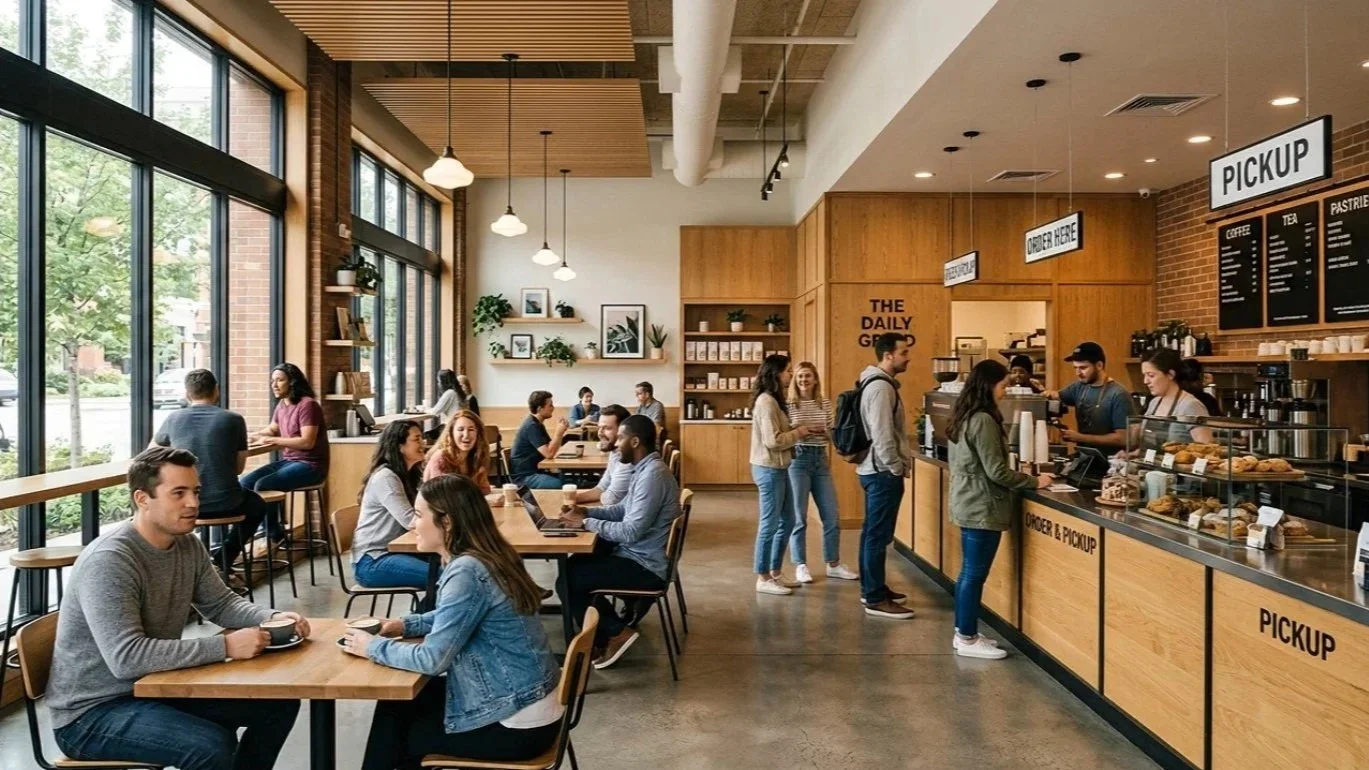
Consider the concept image below created with Chaos Veras. Perfectly suitable modern / industrial style coffee shop (warm vertical finishes, cooler and harder horizontal surfaces), and fronted by a large glazed opening allowing lots of diffused lighting. The below image could be mistaken for a photograph of a real-world project!
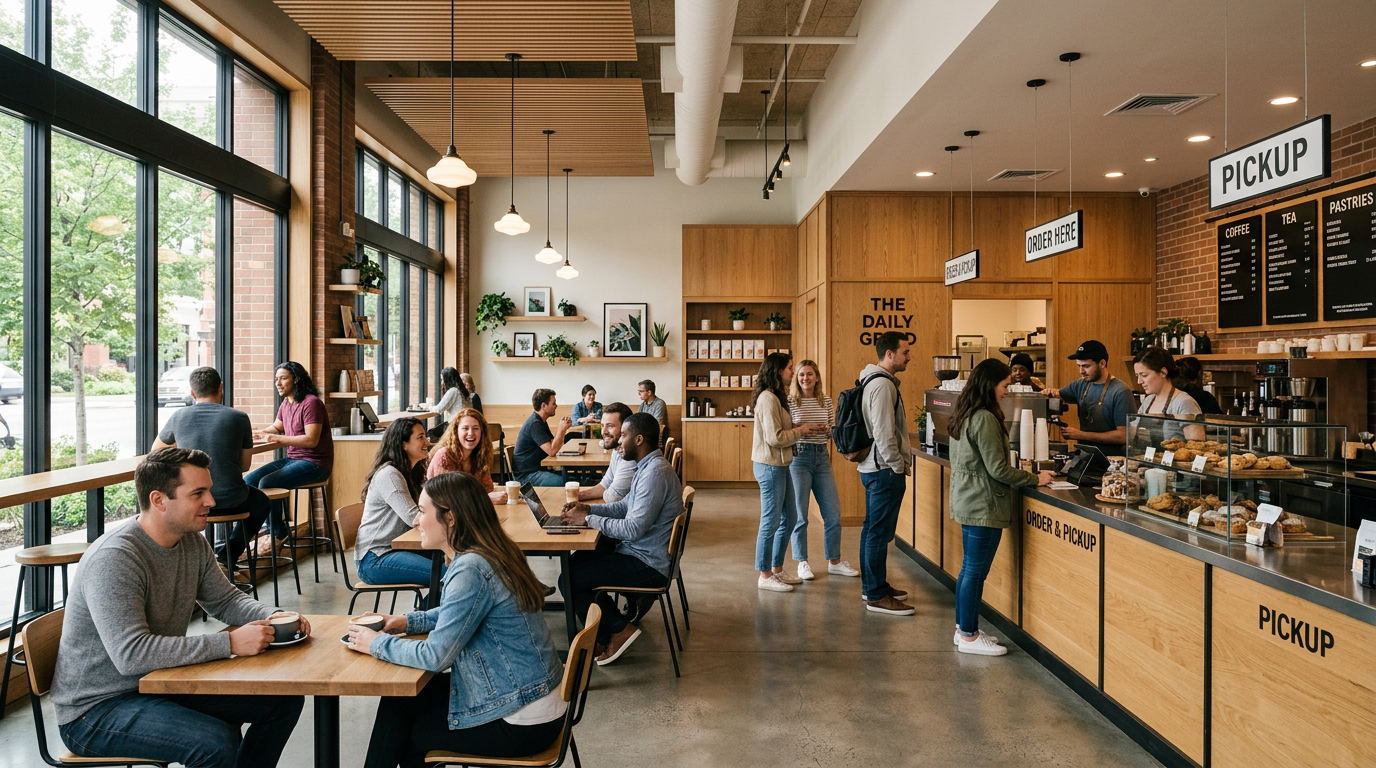
Concept Coffee Shop Created w Chaos Veras
Imagine posting a similar real-world image on your company website illustrating past projects and present talent. And yet something's missing. There's the facts of activity: people appear seated and mid-conversation, placing orders, and waiting for pick up. But the emotional connection is missing.
Still = Sterile.
Where's the emotional connection and sense of activity? Nothing exaggerated. Just a hint, a gesture, some familiar sense of conversation and life is all it takes.
Would've been nice to have created such a video during the design, or before turnover when you booked a professional photographer and videographer. But that opportunity is long gone and now there's no budget. Re-assembling a few dozen talent, photographer, lighting, etc? Out of the question. Or is it? You've got the photos, right?
Let's get started! Use a photograph or download the image above. Or create your own, using the process below. Read on! :)
First, we'll create a useful starting image for creating our player rest style video. If you don't have a photograph, you don't need a source model or sketch to create your starting image. Veras allows you to generate design images by setting the Source Image to None and describing a suitable prompt.
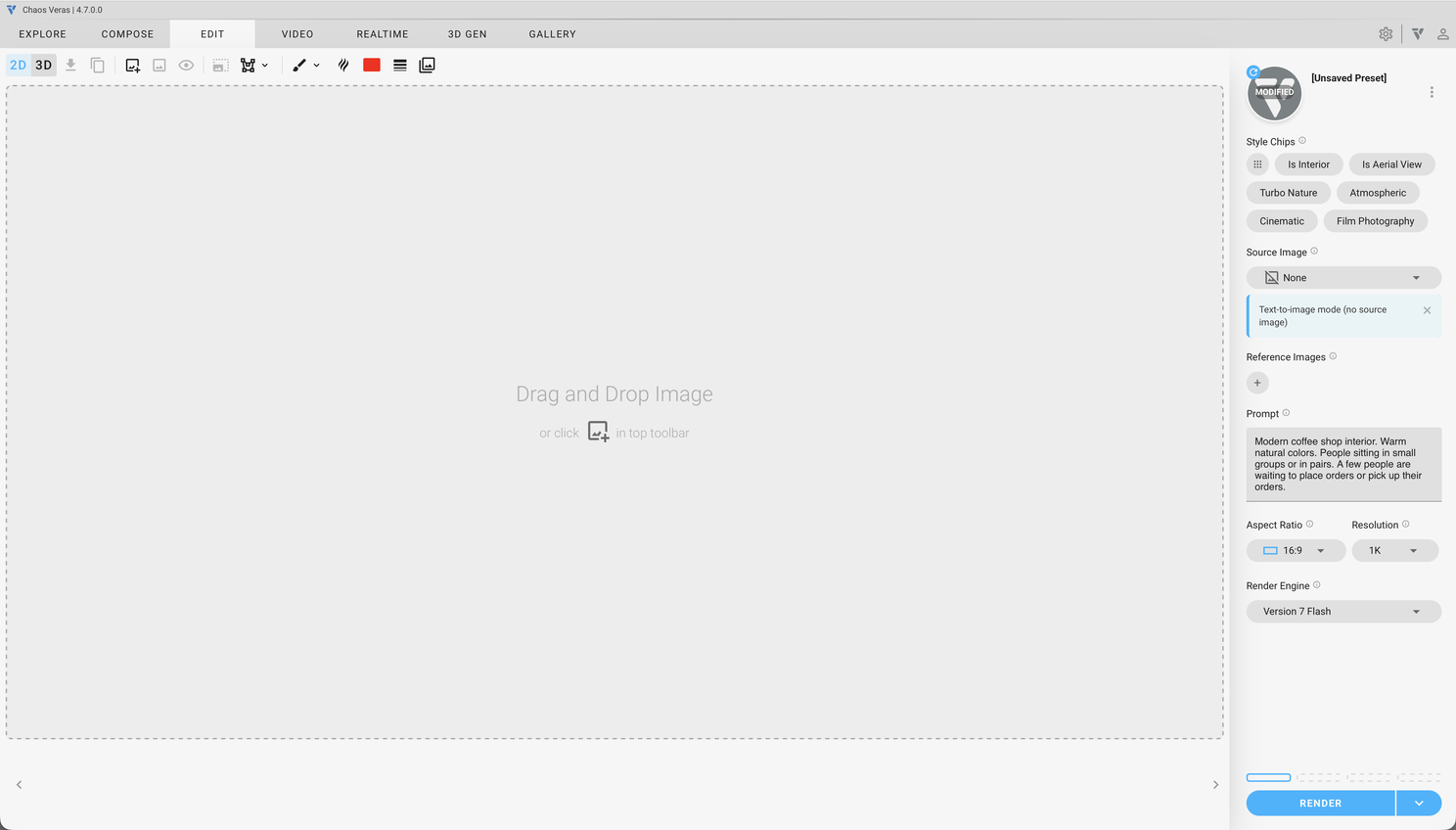
Creating the Concept Coffee Shop
Here's the prompt: Modern coffee shop interior. Warm natural colors. People sitting in small groups or in pairs. A few people are waiting to place orders or pick up their orders.
Here's the result.
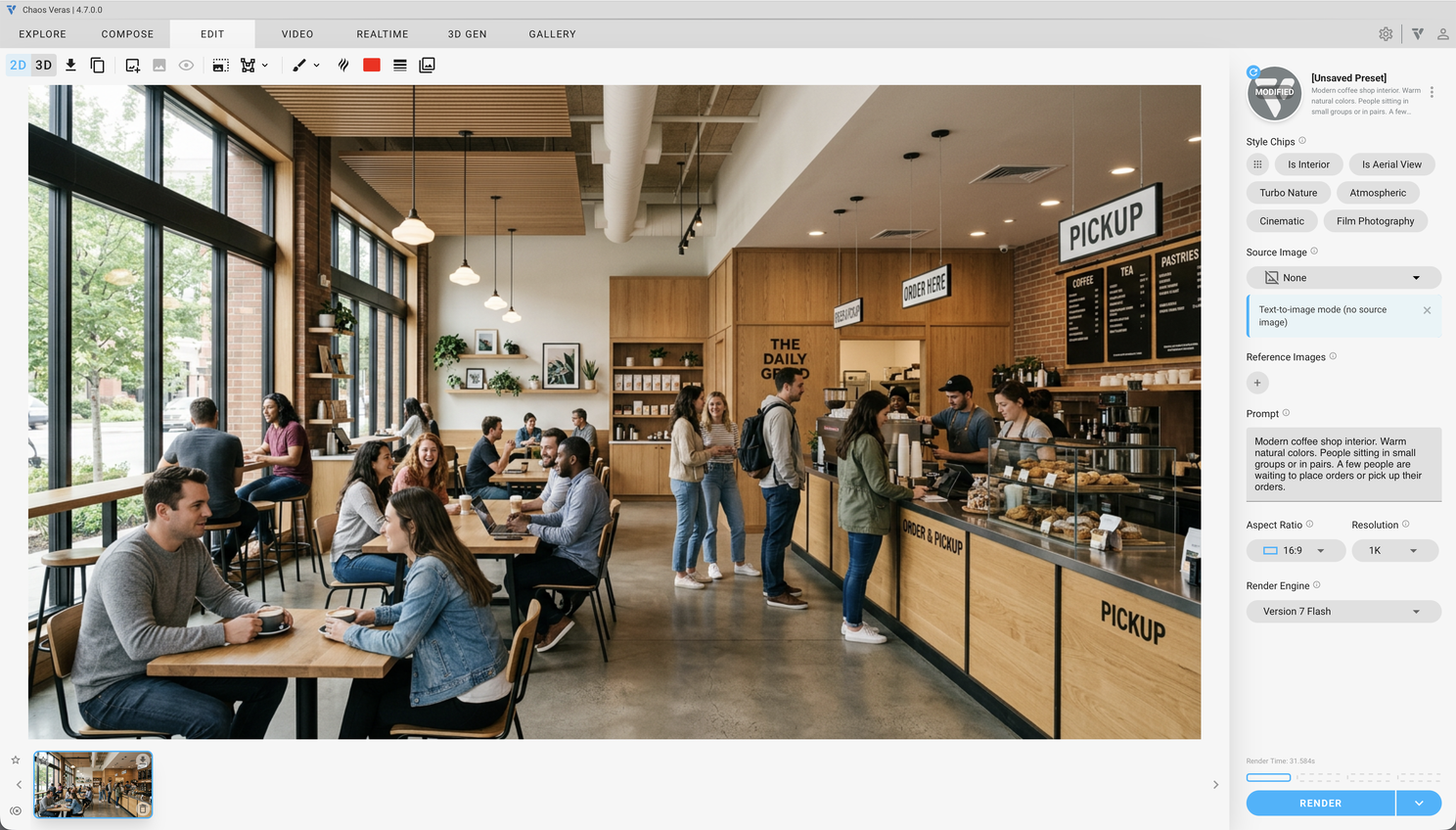
Coffee Shop Created!
Next, select the Video tab.
Set the Video Model to Veo 3.1
Assign the Rendered Image as the First Frame and Last Frame
Set the Duration to 8 Seconds
Select the number of video generations to three or four (this creates a multiple iterations for later assemblage)
Prompt: Camera holds steady. People stand at player rest natural shifting their weight in place. Customers engage in natural and friendly conversation. No one enters or leaves the scene.
Press Render
NOTE: Prompting "No one enters or leaves the scene" was intended to keep the generated video from creating the undesirable result of someone entering or leaving the scene, only to appear in the next video sequence. But as Bob Ross often remarked, this created a Happy Accident™. Read on! :)
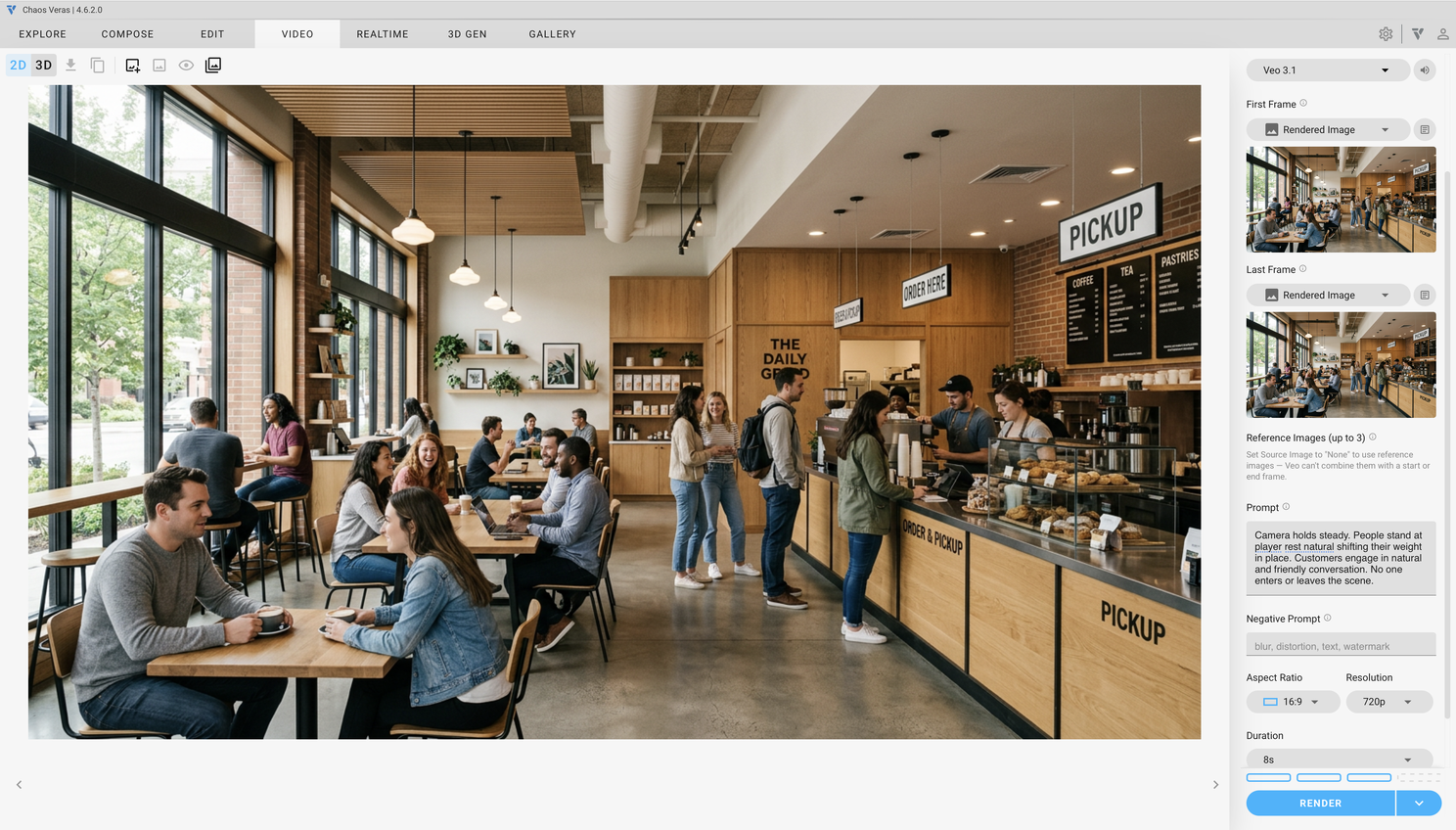
Animation Settings Using the Same First and Last Frame
The resulting three videos start and stop with identical first and last frames. But each of the three videos are slightly different in the middle of the animation. This allows you to create a single composite loop where the repetition is not too obvious during a ~20 seconds loop. I prefer this method over creating one long video, where there's less control during the sequence (and you've burned through a lot of render credits). Creating shorter, 8 second videos and using subjective preference to rearrange the order and trim time between videos (at the point where the first and last frame overlap) seems more satisfying.
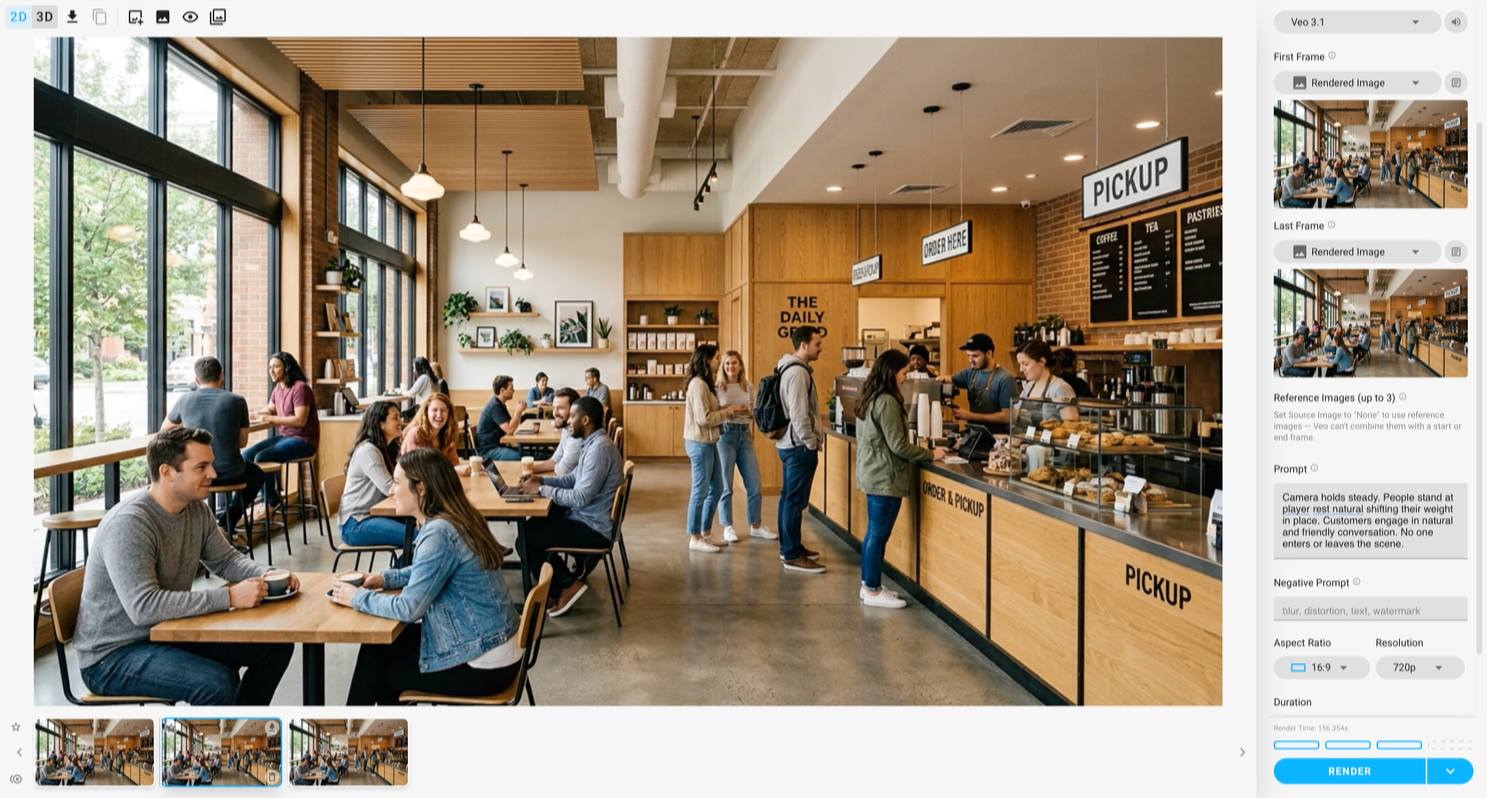
Resulting Videos on the Timeline
Next, let's trim the timing between videos. Using your preferred video editing app (I like Camtasia) arrange the separate videos in a preferred order on the timeline. Then trim the end of one video and the start of the next video until the transitions feel natural. Otherwise, the length of time and pause between segments feels too long and unnatural.
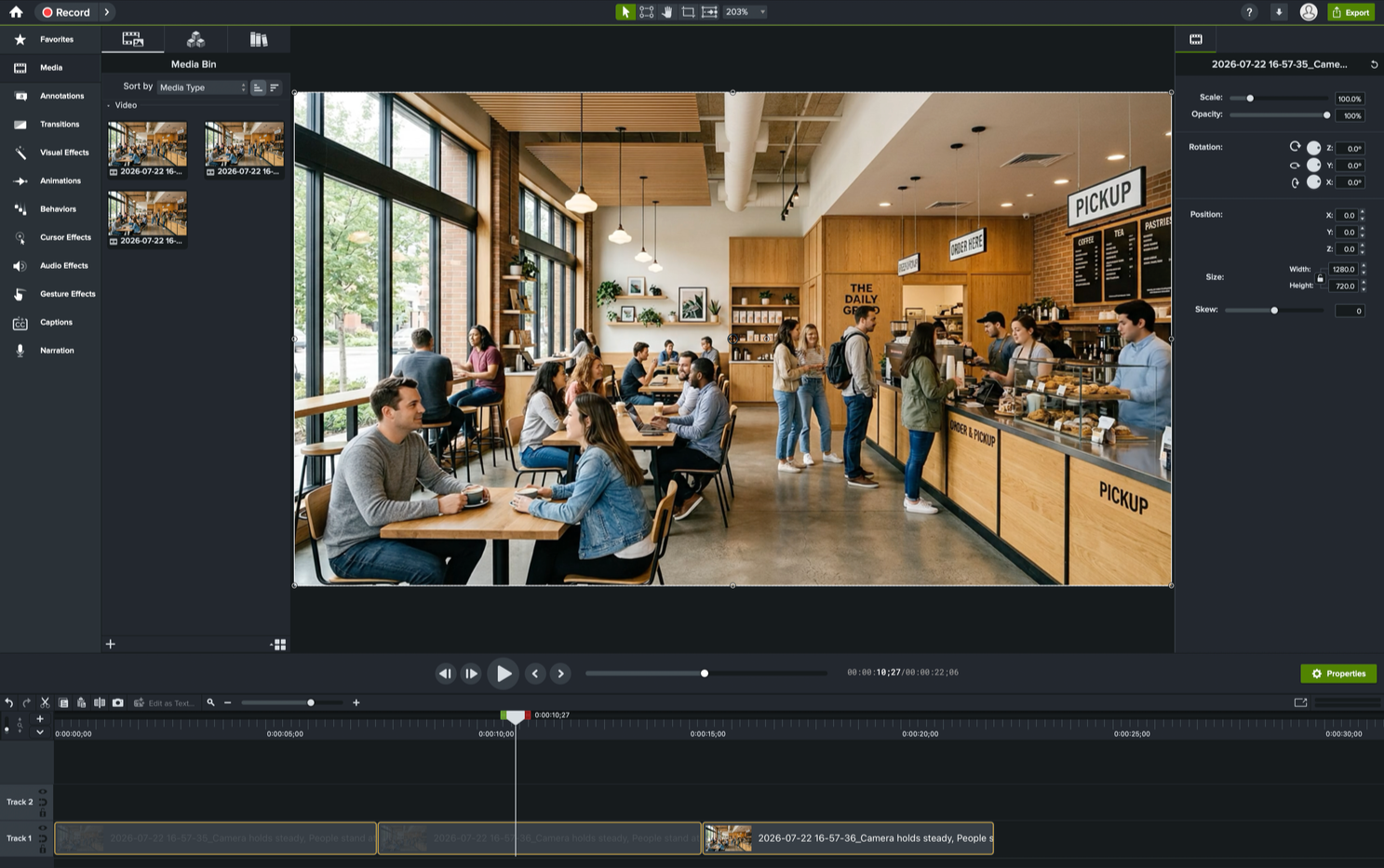
Arranging the Results in Camtasia and Trimming the Transitions
Here's the final 22 second result (vs original 8x3=24 second videos). There's enough time for the video to loop the entire sequence without the overall loop seeming to repetitive or noticeable. But wait a minute! Take particular care to notice what happens in spite of my request that "No one enters or leaves the scene". There are elements enter and leave the scene in a way that maintains the integrity of each video element starting and ending on the same frame!
At 9 sec mark, staff in blue shirt enters scene right and places something to the right of the pastry shelf
At 13 sec mark, red car drives past left to right
At 17 sec mark, grey car drives past right to left
The above three elements don't seem repetitive and appear quite natural. Veras didn't explicitly do what I asked, but the result didn't violate the intent of the prompt, and the result actually turned out quite useful!
Final Composite Video
Congratulations! Now you're able to create player rest style animations to concept renderings and even real-world photographs. Adding a bit of real-world motion and activity is quick, easy, and the results are beautiful - with Chaos Veras!
We hope this article helps you and your team get the most out of Veras. Questions, suggestions or comments? Please add your feedback in the comments section below! :) And don't forget to Sign Up for Enscape Monthly Updates!
ReadThomaswould love to help you succeed with Veras, Enscape and your entire Chaos portfolio! Email us for a private demo or best practices webinar for your team. And when you purchase from ReadThomas, we’ll provide your team with complimentary training, implementation and support! www.readthomas.com.